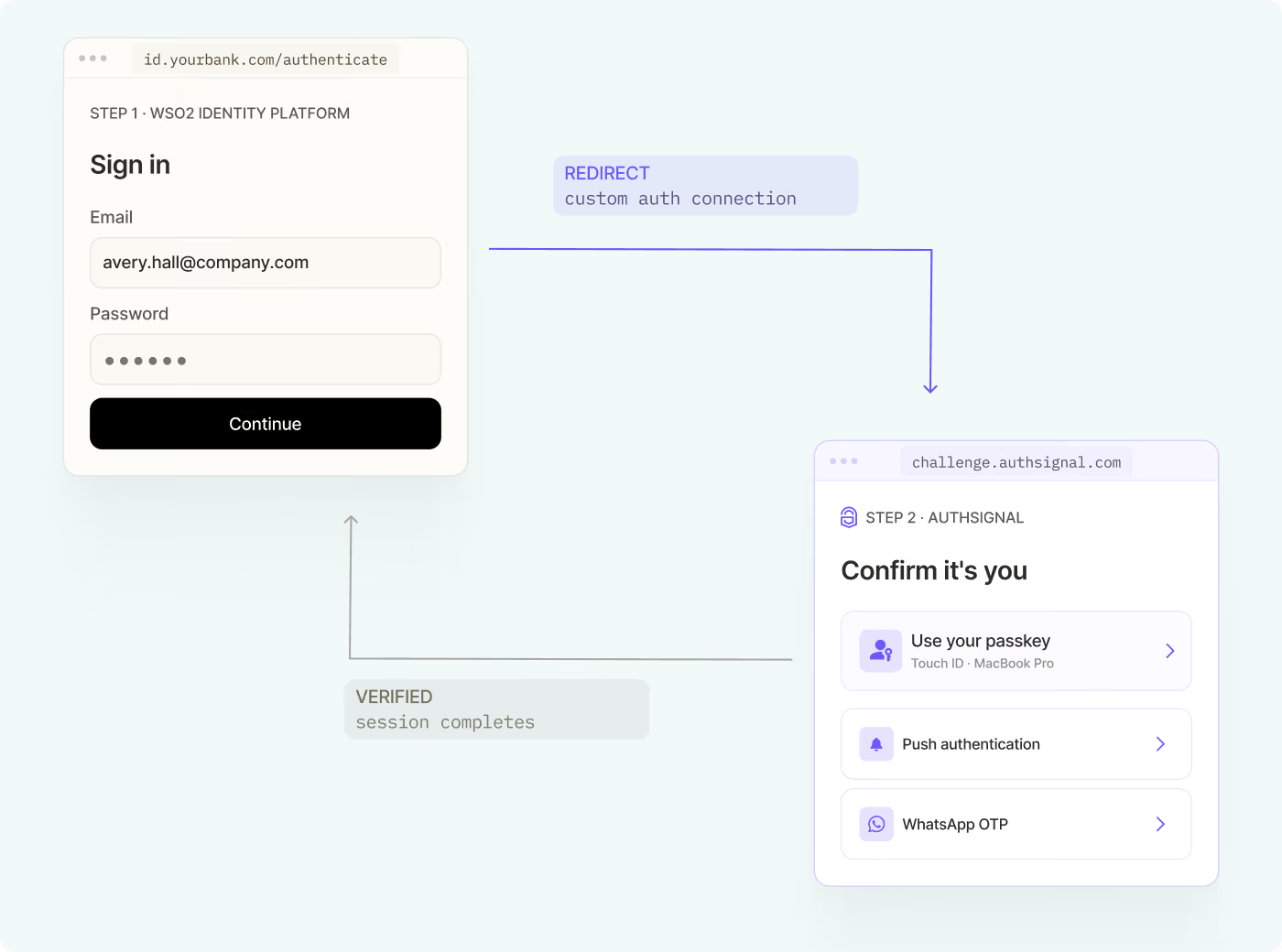
Configuring advanced authentication flows in KeyCloak can be very challenging. The Authsignal provider integration enables you to drop authentication challenges (including passkeys and WhatsApp OTP) in your sign in flows. Our hosted UX and UI enable rapid deployments, while our full mobile SDK support enables you to build custom mobile experiences.
Let's dive into how to integrate Multi-factor authentication (MFA) with Keycloak using the Authsignal Keycloak provider and the Authsignal Java SDK.
For a visual walkthrough of this integration process, you can watch our step-by-step video guide:
Prerequisites
Before we begin, ensure you have:
1. A running Keycloak server
2. An Authsignal account
3. Basic familiarity with Keycloak administration
Step 1: Download and Install Required Components
First, you'll need to download two essential components:
- The Authsignal Keycloak provider
Add both components to your Keycloak server's Providers folder. These pre-built tools are designed to work seamlessly with your existing Keycloak setup, though the provider is open-source if you need to make customizations.
Step 2: Configure Authentication Flow
Once the components are installed, follow these steps in your Keycloak admin portal:
1. Create or select your desired realm
2. Navigate to the Authentication section
3. Duplicate the Browser flow
.png)
4. Remove the conditional OTP from the flow
.png)
5. Add the Authsignal Authenticator provider as a new required step
.png)
.png)
.png)
Step 3: Configure Authsignal Provider
In the provider configuration:
.png)
1. Enter your Authsignal tenant secret key
2. Add your Authsignal API URL
3. Enable "Enroll by Default" if you want users to be automatically enrolled in MFA
.png)
4. Bind the flow to the Browser flow
.png)
Step 4: Set Up Authenticators
In your Authsignal dashboard, configure the authentication methods you want to offer to your users. In this example we are going to use Authenticator app.
Testing the Integration
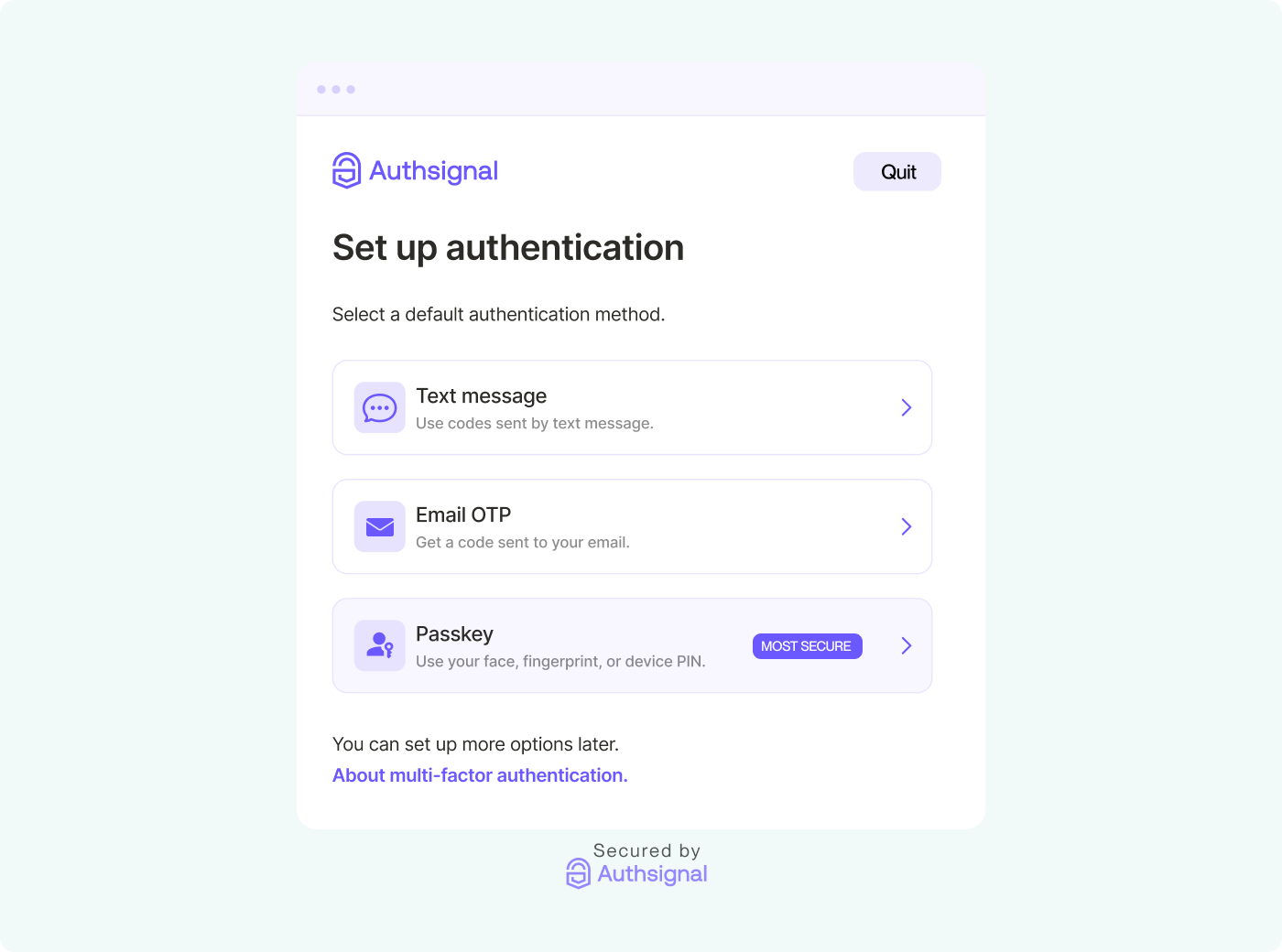
Once configured, the MFA flow works as follows:
1. Users log in with their username and password
.png)
2. First-time users are prompted to enroll in MFA
3. Subsequent logins will require MFA verification
.png)
4. Upon successful verification, users gain access to their account
Conclusion
Integrating Authsignal MFA with Keycloak provides a robust security solution while maintaining a smooth user experience. The pre-built components and straightforward configuration process make it accessible for teams of all sizes to implement strong authentication measures.
For more detailed information and advanced configuration options, refer to the Authsignal documentation.