Typing an email address with a TV remote takes about a minute. Typing a password on a kiosk touchscreen, with a queue behind you, feels longer. The TV shows a QR code, you scan it with your phone, and a few seconds later the TV is signed in.
This post builds that flow with Authsignal. The kiosk shows a QR code, the user scans it with their phone camera and proves who they are on the phone with a passkey or an email code, and the kiosk receives the result. Nobody installs an app, and the kiosk never touches a credential.
What we're building
The demo has two parts:
- A kiosk screen that shows a QR code, waits, and signs the user in.
- A phone page that the QR code opens. It asks for an email address, then hands off to the Authsignal pre-built UI to run the challenge.
Browsers already have a cross-device passkey flow, where a desktop browser shows a QR code and your phone approves over Bluetooth. It needs the shared device to run a browser with WebAuthn support and to have Bluetooth turned on. Plenty of kiosks run locked-down webviews, and most smart TVs have neither. The approach here only needs the shared device to make HTTPS requests and draw a QR code, and the phone does all the authentication.
How it works
The flow is built on an anonymous challenge, which is a challenge created before anyone knows who the user is.
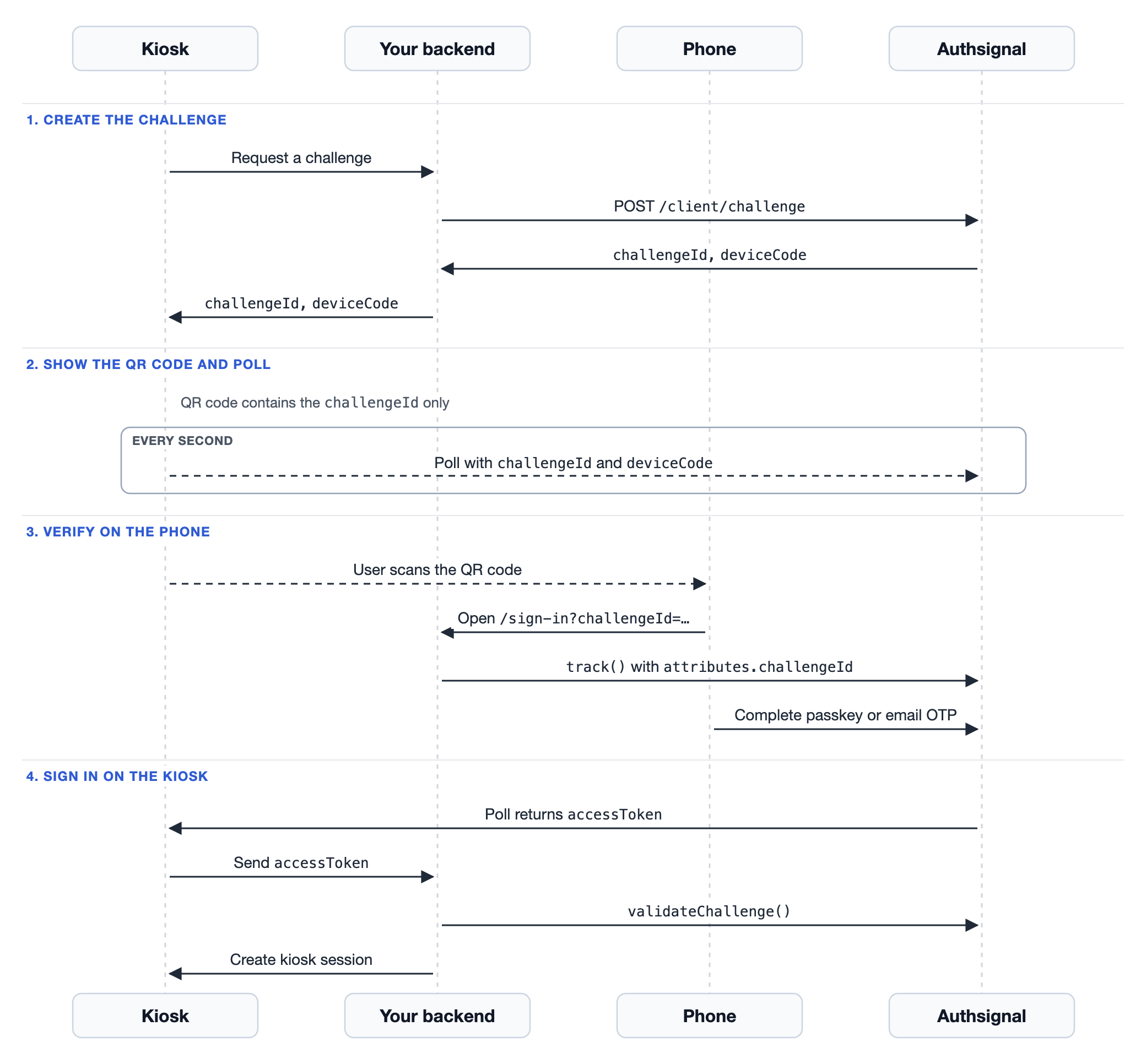
- The kiosk asks Authsignal for an anonymous challenge. Authsignal returns a
challengeId, which is public, and adeviceCode, which is a secret only the kiosk holds. - The kiosk puts a link containing the
challengeIdin a QR code and starts polling Authsignal with both values. - The user scans the code. Your page on the phone identifies them and tracks an action with the same
challengeId. That binds the user to the kiosk's challenge, and the pre-built UI challenges them. - When the user finishes, the kiosk's next poll returns an access token. The kiosk sends it to your backend, which validates it and creates the session.
The deviceCode is what stops someone else from collecting the result. Anyone can read the challengeId off the screen, but only the device that created the challenge can poll for its outcome.
- The kiosk asks Authsignal for an anonymous challenge. Authsignal returns a
challengeId, which is public, and adeviceCode, which is a secret only the kiosk holds. - The kiosk puts a link containing the
challengeIdin a QR code and starts polling Authsignal with both values. - The user scans the code. Your page on the phone identifies them and tracks an action with the same
challengeId. That binds the user to the kiosk's challenge, and the pre-built UI challenges them. - When the user finishes, the kiosk's next poll returns an access token. The kiosk sends it to your backend, which validates it and creates the session.
The deviceCode is what stops someone else from collecting the result. Anyone can read the challengeId off the screen, but only the device that created the challenge can poll for its outcome.
Set up Authsignal
Install the Authsignal Node SDK. The examples also use qrcode.react to draw the QR code, but any QR library works.
npm install @authsignal/node qrcode.reactIn the Authsignal Portal, create an action called qrSignIn and set it to challenge the user. Turn on the methods you want people to use on their phone. The demo uses passkeys and email OTP. You don't need to turn on the QR code authentication method; that one is for approving requests from inside your own mobile app, which this flow doesn't use.
import { Authsignal } from "@authsignal/node";

export const authsignal = new Authsignal({
  apiSecretKey: process.env.AUTHSIGNAL_SECRET_KEY,
  apiUrl: "https://api.authsignal.com/v1", // Use your region's URL
});
Step 1: Create a challenge for the kiosk
The kiosk could call Authsignal directly with the tenant ID. We route the call through our backend instead, because the backend knows which kiosk is asking and can store that against the challengeId. The phone page reads that record later to tell the user where they are signing in.
// Your backend: create a challenge when a kiosk asks for one
async function createKioskChallenge(kiosk) {
  const res = await fetch(`${AUTHSIGNAL_API_URL}/client/challenge`, {
    method: "POST",
    headers: {
      Authorization: `Basic ${btoa(`${TENANT_ID}:`)}`,
      "Content-Type": "application/json",
    },
    body: JSON.stringify({ action: "qrSignIn" }),
  });
  const { challengeId, deviceCode } = await res.json();

  // Remember which kiosk owns the challenge so the phone page can name it
  await db.challenges.save({ challengeId, kioskName: kiosk.name, location: kiosk.location });

  return { challengeId, deviceCode };
}
The challenge lives for your tenant's token duration, which is 10 minutes by default. Have the kiosk ask for a fresh one a minute before that, so nobody scans a code that expires mid-sign-in.
Step 2: Show the QR code and poll
The QR code holds a link to your own sign-in page, with the challengeId in the query string. Any phone camera app opens a link, so there's nothing to install. Never put the deviceCode in the QR code. It is the kiosk's proof of ownership.
<QRCodeSVG value={`https://example.com/sign-in?challengeId=${challengeId}`} />
While the code is on screen, the kiosk polls Authsignal's /client/verify endpoint once a second with the challengeIdand deviceCode. This call only needs the tenant ID, so it runs from the kiosk's browser.
// Kiosk: run this once a second until the user finishes on their phone
const res = await fetch(`${AUTHSIGNAL_API_URL}/client/verify`, {
  method: "POST",
  headers: {
    Authorization: `Basic ${btoa(`${TENANT_ID}:`)}`,
    "Content-Type": "application/json",
  },
  body: JSON.stringify({ challengeId, deviceCode }),
});
const { isClaimed, isConsumed, isVerified, accessToken } = await res.json();

if (isVerified) sendTokenToBackend(accessToken);
else if (isConsumed) showSignInFailed();
else if (isClaimed) hideQrCode();
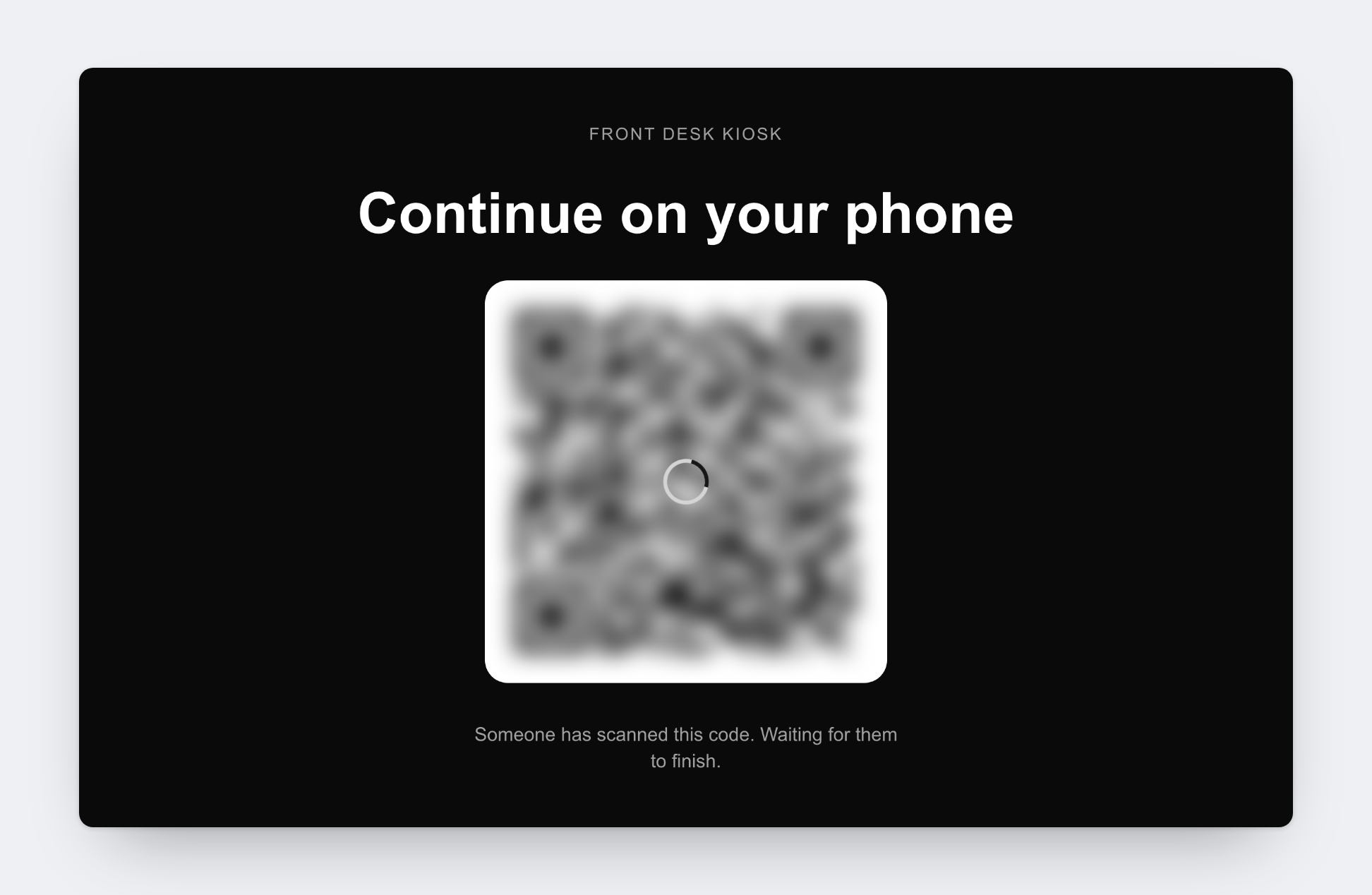
The response moves through three states. isClaimed turns true as soon as your backend binds a user to the challenge, which is the moment to blur the code so the next person in line can't scan it. isConsumed turns true when the user finishes, and isVerified tells you whether they passed. A successful result carries an accessToken, and the result is single-use: once the kiosk has collected it, later polls fail.
Step 3: identify the user on the phone
The QR code opens /sign-in?challengeId=... on the phone. The page looks up the kiosk that created the challenge and says so at the top, then asks for an email address.
<p>
  You're signing in on <strong>{challenge.kioskName}</strong> at {challenge.location}.
  Only continue if you're standing in front of it.
</p>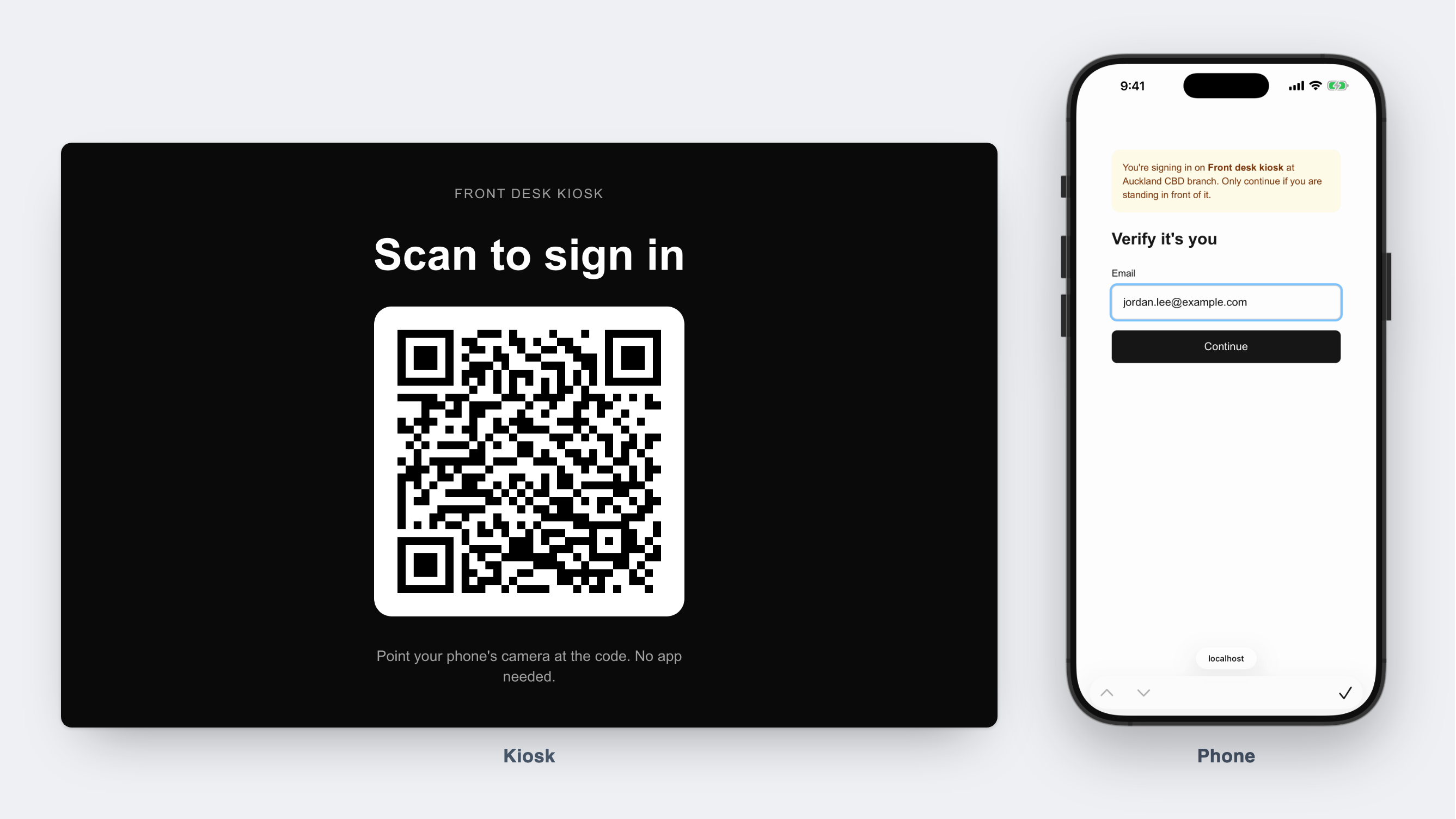
We come back to that banner in the security section.
When the user submits, your backend looks them up and tracks the action with the kiosk's challengeId:
// Your backend: bind the user to the kiosk's challenge
const { url } = await authsignal.track({
  userId: user.id,
  action: "qrSignIn", // The same action the kiosk used
  attributes: {
    challengeId, // From the QR code link
    redirectUrl: "https://example.com/sign-in/done",
    ipAddress: phoneIpAddress, // So rules see the phone, not your server
    userAgent: phoneUserAgent,
  },
});

// Send the phone to the Authsignal pre-built UI
return redirect(url);
The challengeId goes inside attributes, next to redirectUrl. If you put it at the top level of the request, the Node SDK doesn't send it. track still returns CHALLENGE_REQUIRED and a working pre-built UI link, so nothing looks wrong, but it has started a brand-new challenge. The user signs in on their phone and the kiosk keeps polling the old challenge forever. We hit this while building the demo, and the symptom is a kiosk stuck on "Continue on your phone".
The action code must also match the one the kiosk used. If it doesn't, track fails with 404 Challenge not found, which is at least loud about it.
Step 4: Complete the challenge on the phone
The pre-built UI takes it from here and picks the challenge based on what the user has enrolled. A returning user with a passkey gets a Face ID or fingerprint prompt and is done in a couple of seconds. A new user is asked to set up a method first.
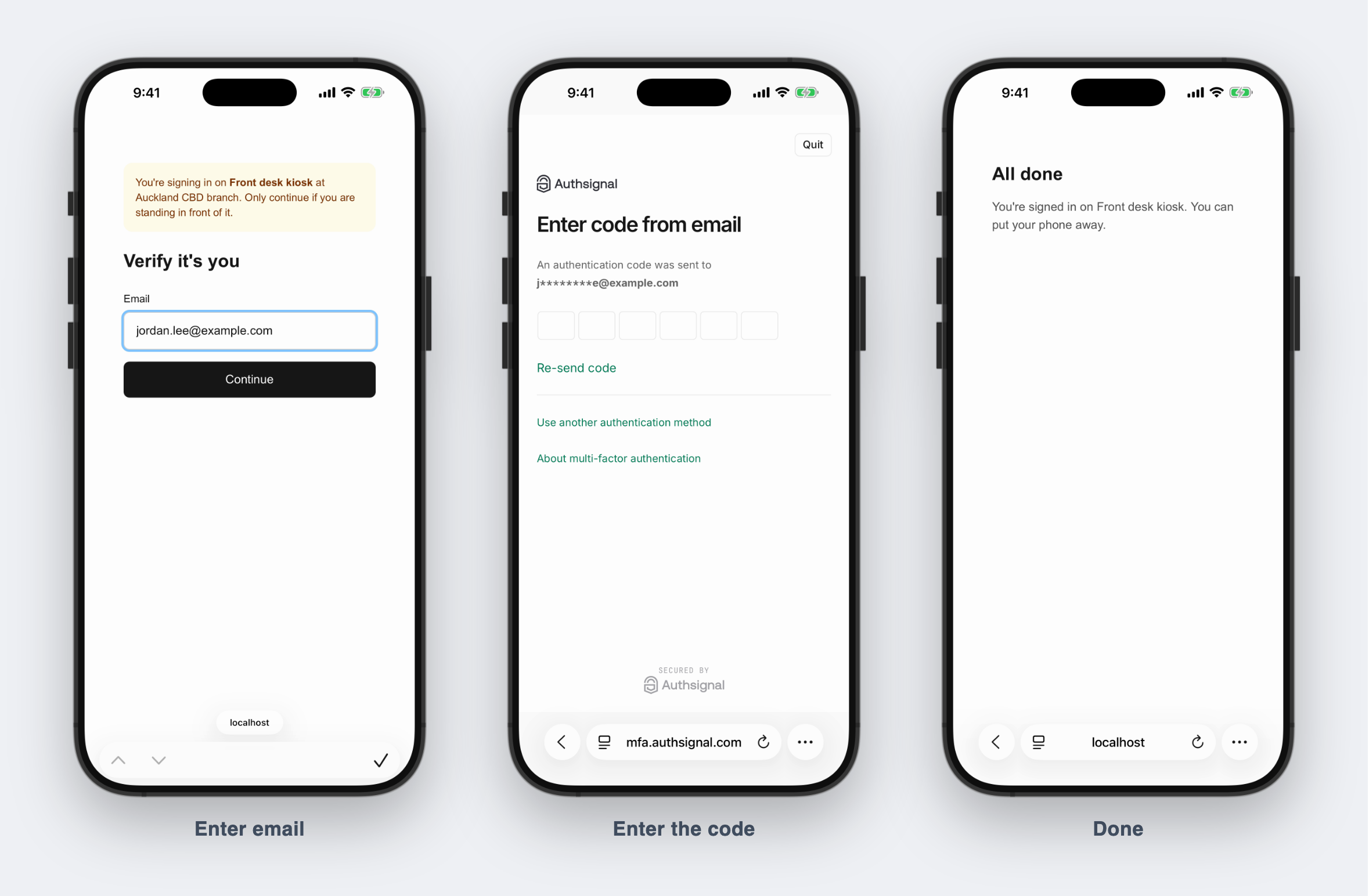
When the pre-built UI finishes, it sends the user to your redirectUrl. The demo's done page tells them they can put their phone away. It doesn't create a session on the phone, because the phone isn't the device being signed in.
Step 5: Sign in on the kiosk
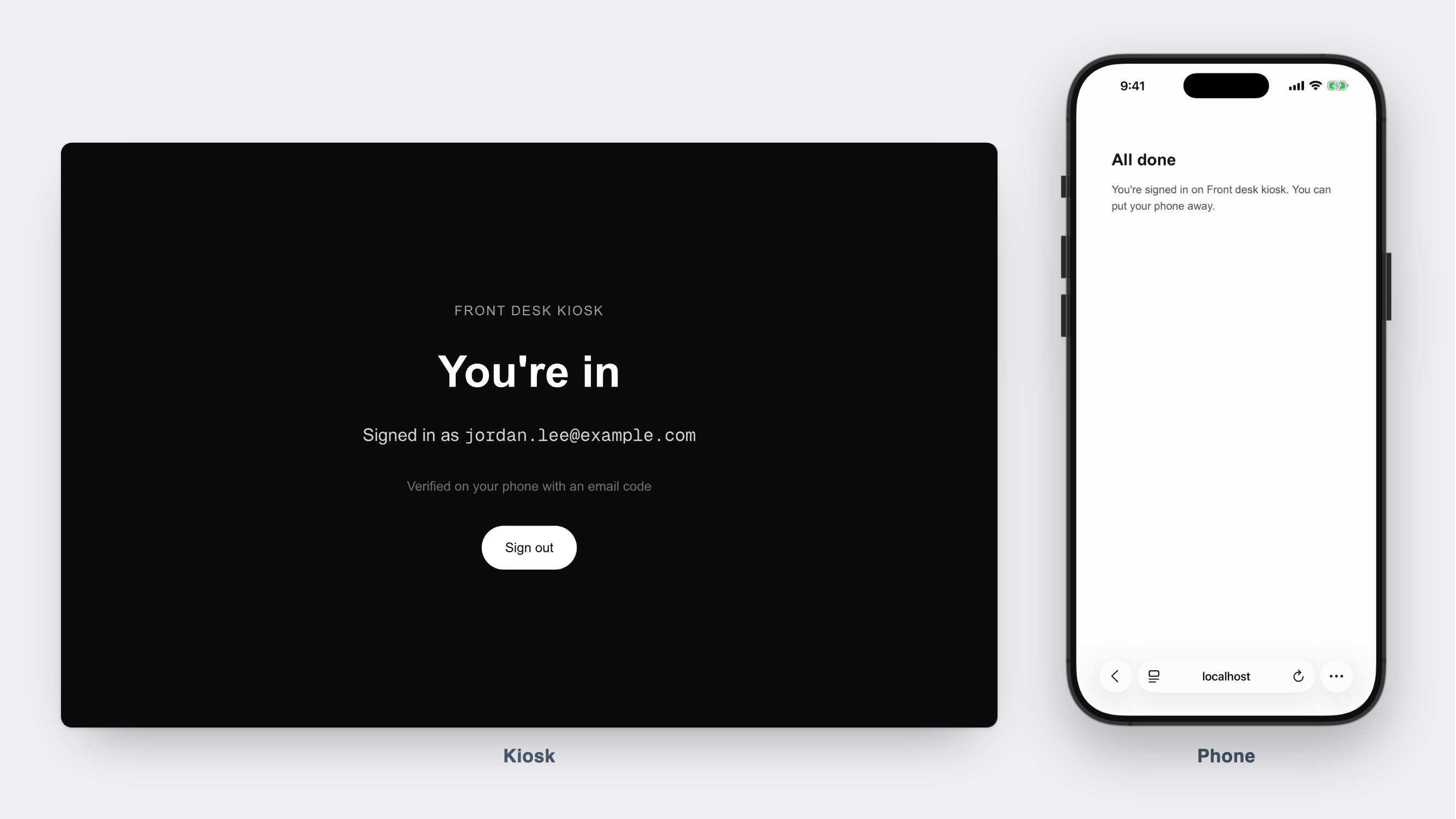
On the kiosk's next poll, Authsignal returns the access token. The kiosk posts it to your backend, which validates it with the secret key before trusting it:
// Your backend: check the token before signing the kiosk in
const { isValid, userId, verificationMethod } = await authsignal.validateChallenge({
  action: "qrSignIn",
  token: accessToken,
});

if (isValid) {
  createKioskSession(userId); // Keep it short-lived
}
validateChallenge reports the method the user completed on their phone, such as PASSKEY or EMAIL_OTP, so you can apply different session rules to each. Keep kiosk sessions short. The person who signed in will walk away, and the next person will touch the same screen.
Next steps
You now have a kiosk that signs people in with a QR code and the phone they already carry, using passkeys or email codes. The cross-device QR code sign-in guide covers each API call in more detail, including request and response fields. If your users already have your mobile app, QR code verification lets them scan the code inside the app and approve with a device key instead of opening a browser.